4 min read
Not everyone has fast fibre. Many people join from mobile data, a shared office line or a village with one bar of signal. Video calls on slow internet can still work well if the meeting sends less data and you help it a little. This guide explains what happens on a weak line and the ten fixes that make the biggest difference.
What the room already does for you
The meeting room measures your connection all the time. When the line gets weak, it steps down the video quality by itself and tells you: "Your connection is weak. Switching to a lower video quality." Voices get priority over pictures, so people can keep talking while the video gets smaller. You can see your own connection quality in the room, so you know whether the problem is on your side.
Fix 1 to 3: the settings in the room
Open Settings in the meeting (under More). Three controls matter:
- Data saver. Tick Data saver: smaller video, fewer tiles. The room sends and shows smaller video and fewer tiles at once.
- Video quality. The default is Automatic (recommended). On a weak line, choose SD 360p or Low 180p yourself.
- Audio only. Choose Audio only under Video quality to stop video and keep the sound. This uses the least data of all.
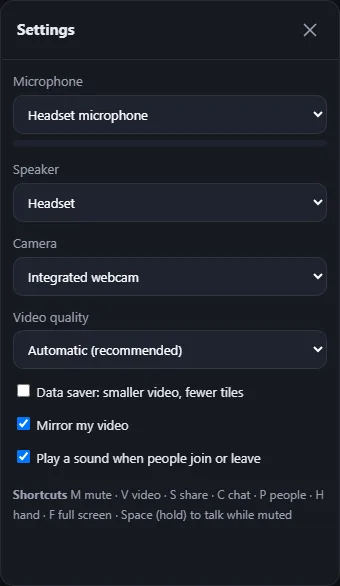
The browser remembers your choice, so the next meeting starts the same way.
Fix 4 to 6: your own video and the layout
- Turn off your camera when you listen. Press Stop video or V. Sending video costs more than receiving it on many mobile lines.
- Use speaker view. Press Change layout and pick Speaker view. It shows one large picture and a strip instead of many tiles, and uses less than gallery view.
- Close other tabs. A video playing in another tab or a cloud backup can take most of your bandwidth.
Fix 7 to 10: the network
- Move closer to the Wi-Fi router. Walls and floors cut the signal. A network cable is better still.
- Stop big downloads on the same network. Ask others at home to pause streaming during an important call.
- Try another network. Your phone's hotspot can be faster than a busy office line, and the other way round.
- Switch off the VPN. A VPN can slow down or block video. Try the call without it if your company allows that.
For hosts: large meetings send more video to everyone. On a site without a media server, video and sound travel directly between the browsers, so a meeting with many cameras on costs each person more. Ask people to turn cameras off when they are not speaking, or read our guide to plans and large meetings.
On mobile data
A phone call over mobile data works best with data saver on and your own camera off. Keep the screen on, and keep the phone still if you can: moving between cells can drop the line for a moment. If the room loses the connection, it shows "Reconnecting" and tries again by itself, keeping your place. If that fails, press Rejoin. More phone tips are in our post on joining from a phone, tablet or TV.
When the sound breaks up
Choppy sound on a slow line usually means the upload is full. Switch to Audio only, mute when you do not speak, and hold Space to talk when you need to. If the problem is that nobody hears you at all, that is a microphone issue. See how to fix camera and microphone problems.
Frequently asked questions
How much data does audio only use?
Far less than video. Audio only stops sending and receiving camera video and keeps the sound, so it is the best choice on a very slow or expensive connection.
Why is my video blurry even on fast internet?
Check Video quality in Settings. If Data saver or Low 180p is on, set it back to Automatic. A slow upload on the other side can also lower what you see.
Does data saver affect the others?
It changes what your browser sends and shows. Others see your video smaller. Their own settings stay as they are.
Where can I check my connection?
The room shows your connection quality. The panel lists how well each person is connected, including loss and delay. The slow internet help article has more detail.