4 min read
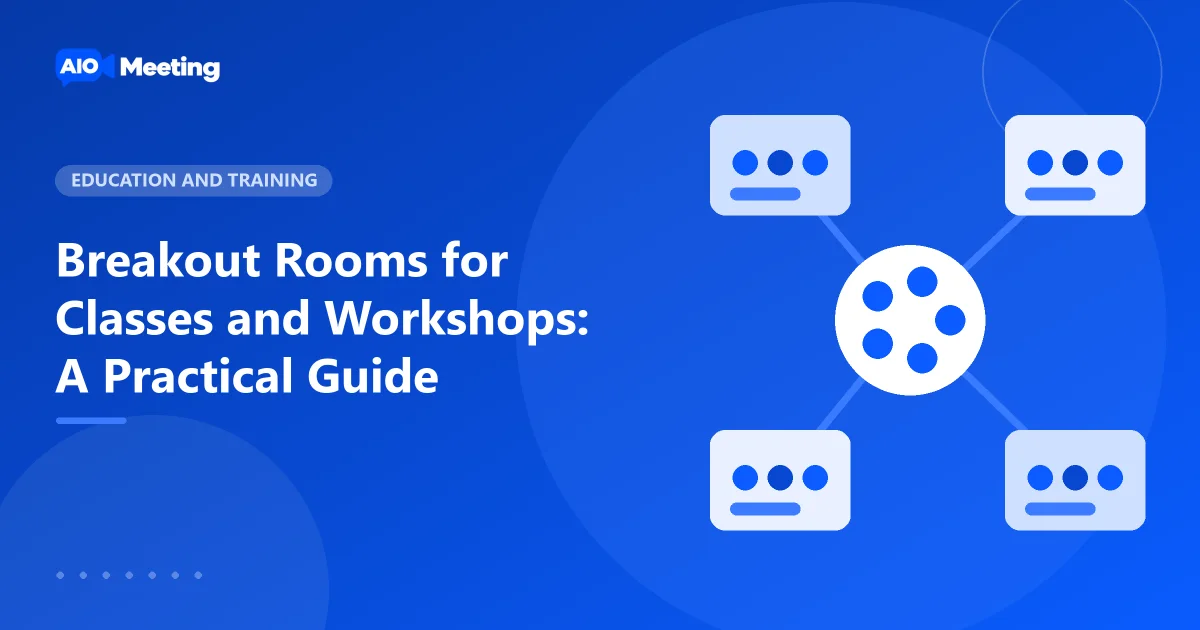
Large groups talk less. Put the same people into rooms of four, and almost everyone speaks. Breakout rooms split a meeting into smaller groups for a while and bring everyone back when the time is up. They work for school classes, university seminars, training days and team workshops. This guide shows how to set them up and how to run them so that group work actually happens.
What breakout rooms do
- The main meeting splits into up to 50 rooms.
- Sound, video, screen sharing and chat stay inside each room.
- The host can visit any room, send a message to every room and close them all at once.
- When the rooms close, everyone returns to the main room after a short countdown.
Breakout rooms are a package feature. If you do not see them in the room, check the pricing page.
Create the rooms
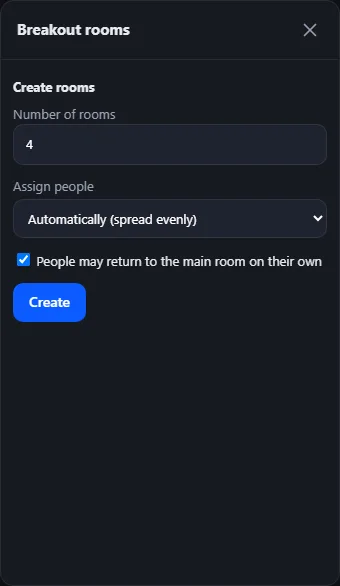
- As the host, open Breakout rooms in the meeting.
- Set the Number of rooms.
- Choose how to Assign people: Automatically (spread evenly), By hand, or Let people choose a room.
- Press Create rooms. You can rename a room and move people before you open them.
Which way to assign?
- Automatically is fastest and mixes people well. Use it for short discussions.
- By hand lets you build balanced teams, or keep project groups together week after week.
- Let people choose works when each room has a topic. Rename the rooms, for example "Budget", "Design", "Marketing". People then see "Pick a room to join."
Open the rooms with a timer
Before you press Open all rooms, set Close after to a number of minutes. The rooms then close by themselves. Tick People may return to the main room on their own if a group may come back early. Then press Open all rooms.
Tip: give the task before you open the rooms, and paste it in the chat too. Once people are in their rooms, they cannot read the main chat. A one-line task with a clear output works best: "In 10 minutes, agree on three ideas and pick one person to present them."
While the rooms are open
Visit a room
Press Join next to a room to go in. Use Return to main room to come back. Visit each room for a minute to check that the group understood the task.
Broadcast to every room
Use Broadcast to every room to send a short message everyone sees, such as "Five minutes left" or "Write your answer in the shared document".
Answer a call for help
Participants can press Ask for help. You are told which room asks, and you can join that room.
Bring everyone back
Press Close now, or let the timer do it. Everyone sees a countdown and returns to the main room. Then ask one person from each room to share what the group found. When you no longer need the rooms, press Delete rooms.
A simple workshop plan
- 5 minutes: welcome and the task in the main room.
- 15 minutes: rooms of four, with a 15-minute timer.
- 10 minutes: each room reports back in one minute.
- 5 minutes: a quick poll or a show of raised hands to decide what comes next.
Teaching a regular class? Our guide on how to teach online classes adds recording, mute on entry and attendance. For large audiences that only watch, a webinar fits better: see how to host a webinar.
Common mistakes to avoid
- No timer. Without Close after, groups run over and the main room waits. Always set one.
- Rooms that are too big. Eight people in a room is a small meeting, not group work. Three to five is the sweet spot.
- A vague task. "Discuss the topic" leads to silence. Ask for a concrete result, such as a list, a choice or a drawing.
- Nobody in charge. Ask each room to pick a person who speaks for the group when everyone is back.
Frequently asked questions
How many breakout rooms can I create?
Up to 50 rooms in one meeting. Your package must include breakout rooms.
Can participants choose their own room?
Yes. Choose Let people choose a room when you create the rooms. Give the rooms clear names so people know where to go.
Can the host hear all rooms at once?
No. Sound stays inside each room. The host visits one room at a time with Join, and reaches every room with Broadcast to every room.
What happens when the timer ends?
Everyone sees a countdown and returns to the main room. The rooms stay set up until you delete them, so you can open them again.