4 min read
A good online class feels like a good classroom: students know where to go, they can hear the teacher, and they get a chance to speak. Whether you teach a school subject, a language, music or a university course, the same few habits work. This guide shows how to teach online classes with a fixed weekly link, safe settings, active students and recordings for those who missed it.
1. One link for the whole term
Students lose new links. Give them one. Schedule a recurring meeting for the class: weekly on the days you teach, ending on the last day of term. The link and the meeting ID stay the same for every lesson.
- Open Schedule a Meeting and give it a clear topic, such as "Physics, grade 10".
- Tick Recurring meeting, choose weekly and pick the days.
- Set the End date to the end of term.
- Send the invitation with the calendar file to students and parents.
The full steps are in our guide to scheduling recurring meetings.
2. Class settings that keep order
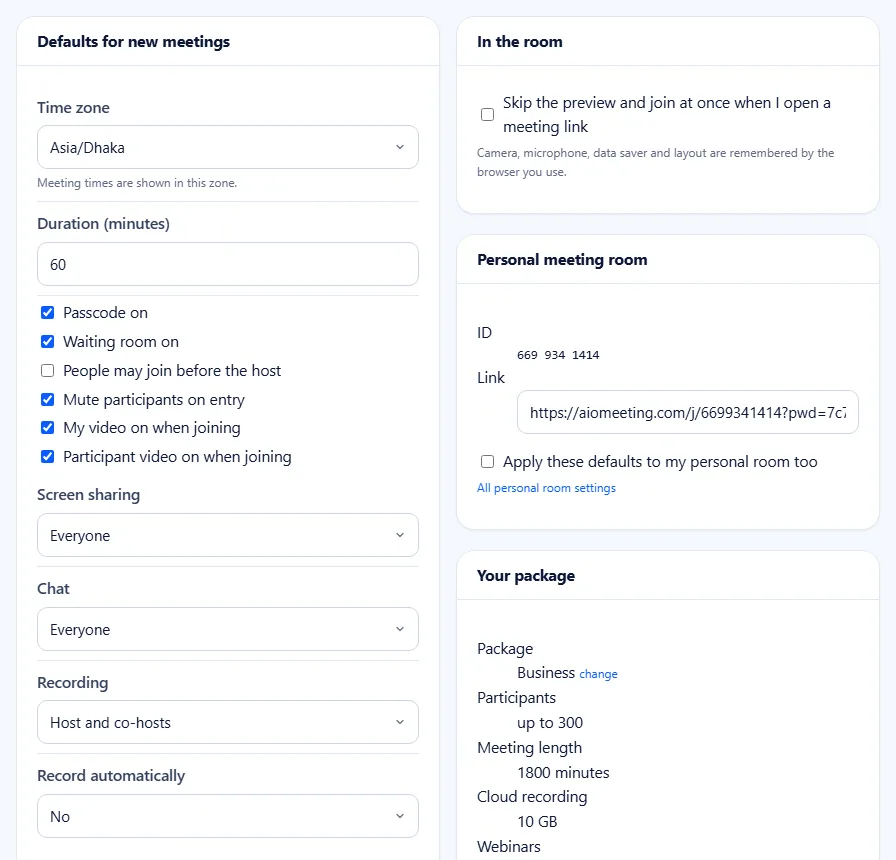
Set these once under Meeting Settings, so every lesson starts the same way:
- Mute participants on entry. Students join quietly, and you unmute them when they speak.
- Waiting room on and passcode on, so only your students get in.
- Screen sharing by the host only. You can still let a student present when you choose.
- Chat for everyone for questions, or only the host in a test.
Our meeting security guide explains each setting.
3. Start on time, every time
Open the room five minutes early. Admit students from the waiting room with Admit all once the names look right, then lock the meeting when the class has started. Late students can message you, and you unlock for them. A short routine at the start helps: a greeting, today's goal in one sentence and the plan for the hour.
4. Keep students active
Attention drops fast on a screen. Change the activity every 10 to 15 minutes.
- Raise hand: ask students to press Raise hand or H to speak. People with a raised hand move up in your People panel.
- Reactions: a quick thumbs up tells you who understood, without stopping the lesson.
- Chat questions: ask everyone to type one answer in the chat at the same time.
- Breakout rooms: send groups of three or four to solve a task, with a timer. See breakout rooms for classes.
- Polls, whiteboard and captions: when the site has these plugins and your package includes them, run a quick quiz with a poll, draw on a shared whiteboard, or switch on live captions.
Tip: say each student's name when you ask a question. Online, a question "to everyone" is a question to no one.
5. Share materials clearly
Share a single window or a browser tab rather than the whole screen, and make the text big. Many students join from phones. Put links in the chat, so students can open them later. More advice is in our screen sharing tips.
6. Record for students who missed it
Turn on Record automatically for the class meeting, or press Record at the start. A cloud recording appears under Recordings. Share it with a link and an optional passcode, so only your class can watch. Tell students at the start that the lesson is recorded.
7. Take attendance without a roll call
After each lesson, open the meeting report. It lists every student who joined, when they joined and left and how long they stayed. Press Download CSV to keep a record in a spreadsheet. See meeting attendance reports.
8. Help students with weak internet
Some students join on mobile data. Tell them about Data saver and Audio only in the room settings, and that they can keep the camera off while listening. Share the guide to video calls on slow internet with parents.
Frequently asked questions
Do students need an account?
No. Students join with the link or the meeting ID. Only the teacher, as the host, needs an account.
Can I stop students from sharing their screen?
Yes. Set screen sharing to the host only, for the class meeting or as your default under Meeting Settings.
How do I take attendance?
Open the report of the lesson under Previous on the Meetings page. It lists each student with join and leave times. Download it as CSV.
Can a lesson last longer than an hour?
Your package sets the meeting length. Check the limits on the pricing page.