4 min read
Screen sharing turns a video call into a working session. It is also where many meetings go wrong: the wrong window, tiny text, no sound on a video, or a private message popping up for everyone. These screen sharing tips help you share the right thing, in a way people can actually read.
How to share your screen
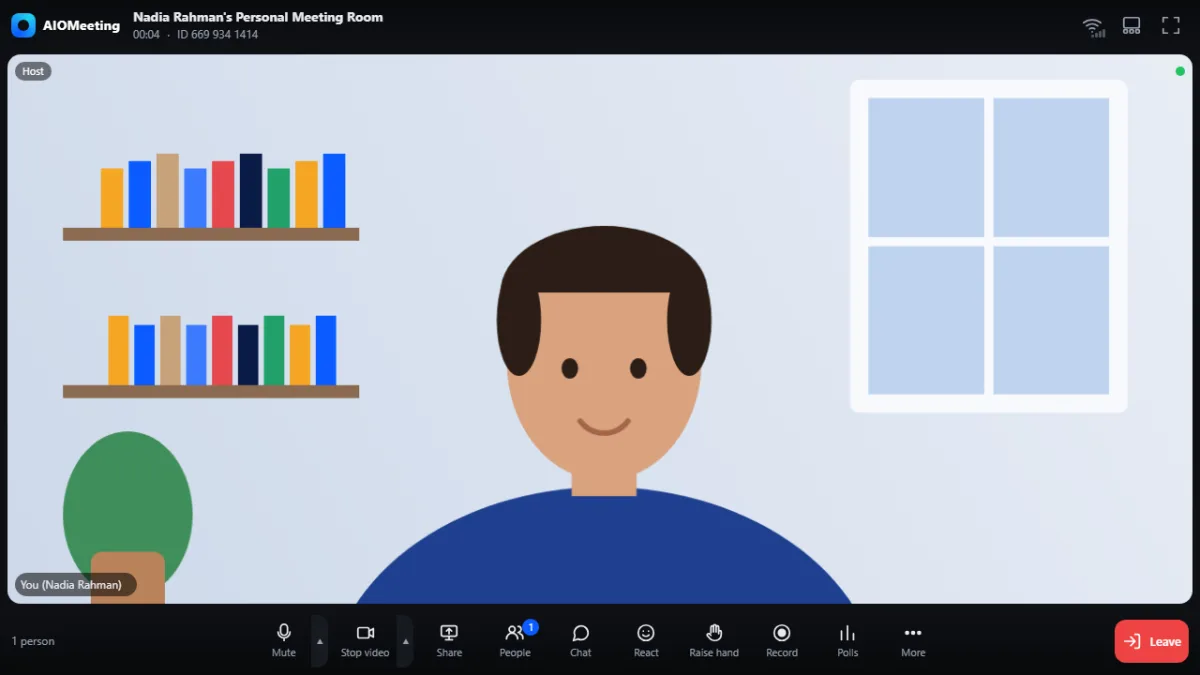
- In the meeting, press Share in the toolbar, or press S.
- The browser asks what to share: the whole screen, one window, or a single browser tab.
- Pick it and confirm. Everyone sees your share large on the stage, and the faces move to a strip.
- Press Stop sharing when you are done.
Screen sharing needs a computer. Phones and tablets can watch a share, but mobile browsers do not offer sharing your own screen.
Window, tab or whole screen?
- A browser tab is the safest and the lightest choice. People see only that tab. It is also the best way to share the sound of a video in Chrome and Edge.
- One window works for a document, a spreadsheet or a design tool. Other windows stay private, even if they open on top.
- The whole screen is for when you switch between many apps. Everything you see, others see, including notifications.
Share the sound of a video
To play a video with sound, share a browser tab and tick the option to share the tab audio in the browser's dialog. In Chrome and Edge on Windows, you can also share the sound of the whole screen. Firefox and Safari share the picture but not the sound. The Download page lists what each browser supports.
Tip: mute your own microphone while a video plays. Your voice and the video sound will not fight, and nobody hears your keyboard.
Make your share easy to read
- Make the text bigger. Set the page size of your browser or app to 125 or 150 percent. Small text that looks fine on your large monitor is unreadable on a phone.
- Close what you do not need. Fewer tabs and windows mean fewer surprises and a faster computer.
- Silence notifications. Turn on "do not disturb" in your system before you share the whole screen.
- Use a plain background. Hide desktop files and personal photos before a whole-screen share.
- Move slowly. Scroll and switch slides a little slower than you think. Video sharing has a short delay, and people on slow connections see the picture a moment later.
Control who can share
The host decides whether everyone or only the host may share. Set it when you schedule the meeting, or as a default under Meeting Settings. In a class or a webinar, sharing by the host only keeps the stage calm. If someone shares by mistake, the host can press Stop their share on that person's tile. When only the host can share, others see "Only the host can share the screen in this meeting."
Presenting with others
Only one share takes the stage at a time. If someone is already sharing, you are told that they are sharing. Agree on the order before the meeting. In a long workshop, ask each presenter to have their window ready before their turn. For bigger groups, our guide on breakout rooms shows how to let small groups share in their own rooms.
Sharing on a slow connection
A share is a video stream like a camera. On a weak connection, stop your camera while you share, so the share gets the bandwidth. If people see a frozen picture, read our tips for video calls on slow internet.
Frequently asked questions
Why can people not hear the video I share?
Share a browser tab and tick the option to share its audio. Firefox and Safari do not share sound. Chrome and Edge do.
Can I share my screen from a phone?
No. Mobile browsers do not offer screen sharing. Phones and tablets can watch what others share.
How do I stop someone else's share?
As the host, open the menu on their tile and choose Stop their share. To prevent it, set screen sharing to the host only.
Does the meeting report show screen sharing?
Yes. The timeline of the meeting report lists screen sharing along with joins, leaves and recordings.