4 min read
An uninvited guest can ruin a class or a client call in seconds. The good news: a few settings make that very unlikely. This guide shows nine ways to secure online meetings, in the order you meet them: before the meeting, at the door, and in the room. Most of them take one tick.
Before the meeting
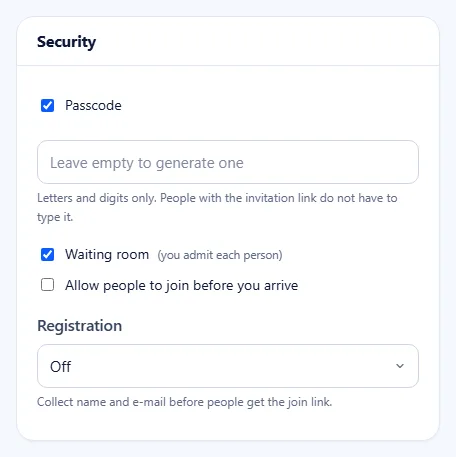
1. Keep the passcode on
A meeting with a passcode asks for it before anyone can enter. The join link carries it in a coded form, so invited people do not type it. Someone who only guessed or saw a meeting ID still needs the passcode. Set Passcode on as your default under Meeting Settings.
2. Switch on the waiting room
With the Waiting room (you admit each person) on, people wait in a lobby with the message "Please wait, the host will let you in soon." You see their names and admit them one by one, or all at once. Nobody sees or hears the meeting before you let them in.
3. Do not let people join before you
Leave Allow people to join before you arrive off for meetings with outside guests. The room then only runs while you are there. People who arrive early see that they are waiting for the host.
4. Use registration for public events
When you share a meeting on a website or social media, set Registration. People sign up with their name and e-mail first and get a personal join link. With Required (you approve each one), you decide who gets the link at all.
At the door
5. Share links in the right places
Send invitations to the people who should come: by e-mail, from your contacts or in a private chat. Avoid posting a meeting link in public places unless registration or the waiting room is on. Our guide on how to invite people shows the options.
6. Admit people by name
When someone waits, you get a note, a short sound and a Waiting room list in the People panel. Press Admit for people you expect. Press Deny for a name you do not know; they see that the host did not admit them. Admit all is fine when you know everyone in the list.
In the room
7. Lock the meeting once everyone is in
Choose Lock meeting when the people you expect have arrived. Nobody else can join while it is locked, even with the right link and passcode. Unlock it the same way if someone is late.
8. Limit screen sharing and chat
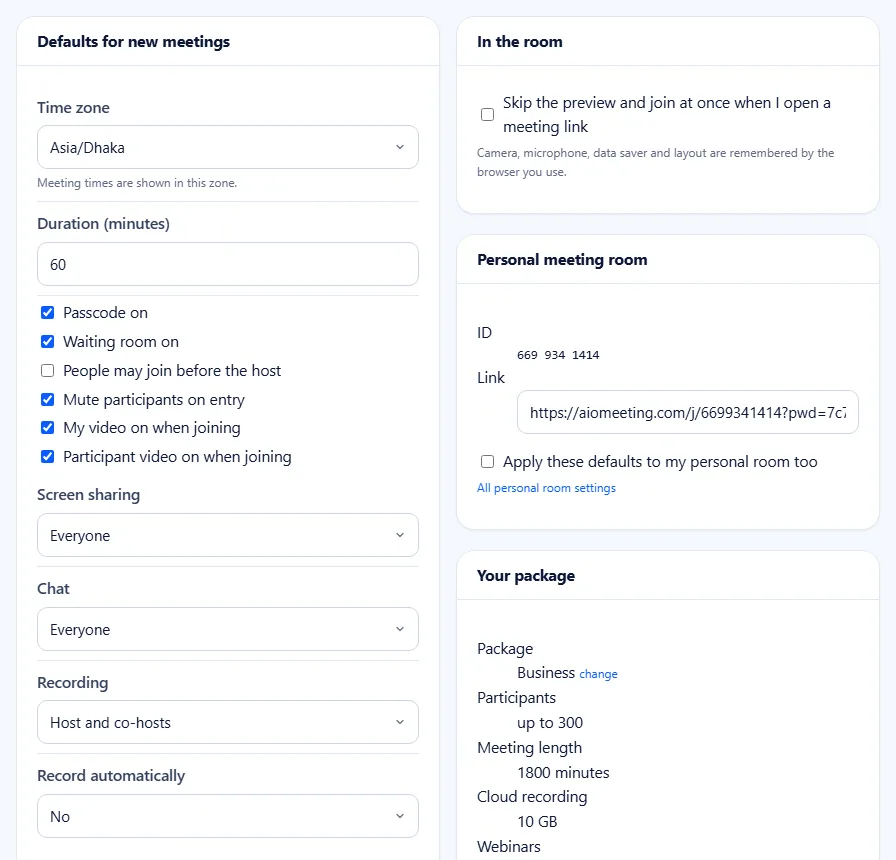
For classes and large calls, set screen sharing to the host only and choose who may chat: everyone, only the host, or nobody. You can set both per meeting, or as defaults under Meeting Settings. The host can also stop anyone's share with Stop their share.
9. Use the host controls, and a co-host
From the People panel or the menu on a tile, the host can Mute one person or Mute all, Stop their video, Rename someone, and Remove from meeting. A removed person cannot come back into that session. In a big meeting, name a co-host with Make co-host. A co-host can admit and remove people while you present.
Protect your account too
Meeting settings protect a meeting. Your account protects all of them. Switch on two-factor sign-in under Security and keep your recovery codes in a safe place. Check the list of devices signed in from time to time and sign out the ones you do not know. The two-factor help article walks you through it.
A quick checklist
- Defaults: passcode on, waiting room on, joining before the host off.
- Public events: registration on.
- In the room: lock once everyone is in, sharing by the host only for large groups.
- Your personal room: same rules, because its link never changes. See the personal meeting room guide.
Frequently asked questions
Is a passcode enough on its own?
A passcode stops people who only know the meeting ID. If a full link with the passcode leaks, the waiting room and the meeting lock are your next lines of defence.
Can a removed person come back?
Not into the same session. A person removed with Remove from meeting cannot rejoin until the meeting starts again.
Can a co-host remove the host?
No. A co-host cannot mute, stop the video of, remove or demote the host.
Where do I set safe defaults for every meeting?
Under Meeting Settings, in Defaults for new meetings. More answers are in the Help Center.