4 min read
A recording turns one meeting into something people can watch again: a lesson for the student who was ill, a demo for a client, a decision for the colleague on holiday. You can record a video meeting with one press, to the cloud or to your own computer. This guide explains both, how to share a recording safely, and how to keep your storage under control.
Cloud or this computer?
- Cloud recording uploads the recording in pieces while you record. It appears under Recordings, ready to play and share. This is the best choice for most people. Cloud recording is on paid packages.
- Recording to this computer saves a video file to your downloads when you stop. Keep the tab open until then. It works on every package that includes local recording.
Record a meeting step by step
- Press Record in the toolbar.
- If your package has both, the room asks "Where should the recording go?" Choose Cloud or this computer.
- Everyone in the meeting is told that the meeting is being recorded, and a recording sign shows at the top of the room.
- Press Stop recording when you are done. A cloud recording then shows "The recording is saved to your account."
Be open about it. Say at the start that you are recording and why. The room shows a notice, but a spoken sentence is kinder. In many places you also need consent; check the rules that apply to you and your guests.
Who may record
The host decides per meeting: only the host, everyone, or nobody. Meetings can also start recording automatically, which is useful for classes. Set both when you schedule a meeting or as defaults under Meeting Settings.
Share a recording with a link
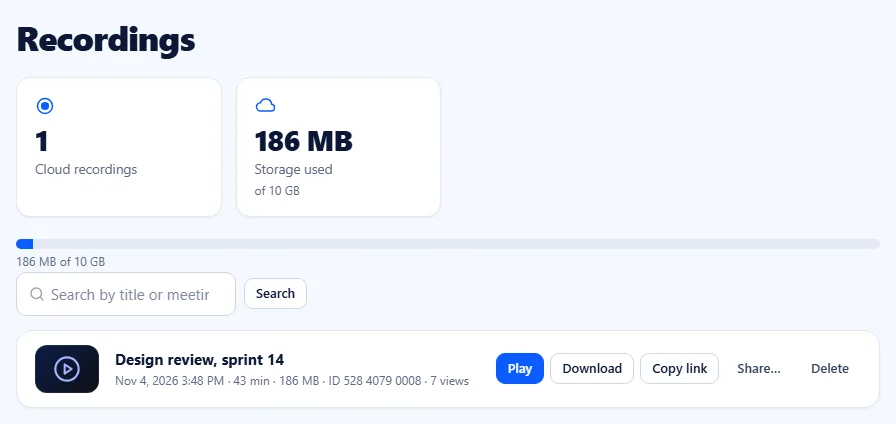
- Open Recordings in your member menu.
- Press Share next to the recording.
- Set Who can watch to Anyone with the link.
- Add a Passcode (optional) if viewers should type one.
- Save, then press Copy link and send it.
Viewers watch in the browser. They do not need an account.
Stop sharing
Set Who can watch back to Only me. Or tick Make a new link (the old one stops working) and save, then send the new link to the people who should keep access.
Keep your storage under control
Cloud recordings use the storage of your package. The Recordings page shows a storage bar with how much is used and how much your package allows; your dashboard shows it too. When the storage is full, a new cloud recording cannot start.
- Download the recordings you want to keep forever, then delete them from the cloud.
- Rename recordings with a clear title, such as "Sales training, part 2", so you can find them later.
- Record only the part that matters. Start the recording after the small talk.
- Need more room? Move to a package with more storage. See the pricing page.
Deleting a recording cannot be undone, so download first if you are not sure.
Local recordings: what to know
A recording to your computer is mixed in your browser while the meeting runs. When you press Stop recording, the file is saved to your downloads and the room tells you "The recording was saved to your downloads." Close the tab before that and the file is lost, so wait for the message. Put the file in a shared folder if others need it, or upload it where your team keeps videos.
Better recordings in five habits
- Use headphones and a quiet room. A recording keeps every noise.
- Use speaker view or spotlight a speaker for a clean picture.
- Make shared text large enough to read on a phone.
- Pause for a second before you speak after switching slides.
- Keep the meeting tab open until a local recording is saved.
Recording a webinar? See how to host a webinar. To see who joined the meeting you recorded, read about meeting attendance reports.
Frequently asked questions
Do people know that I am recording?
Yes. Everyone in the meeting is told, and a recording sign shows at the top of the room while the recording runs.
Can I record on the free package?
Packages that include local recording can record to your computer. Cloud recording and cloud storage come with paid packages.
Can viewers download my shared recording?
Viewers watch the recording in the browser through your link. You decide who can watch, and you can add a passcode or make a new link at any time.
What happens when my storage is full?
A new cloud recording cannot start. Delete or download older recordings, or move to a package with more storage.