4 min read
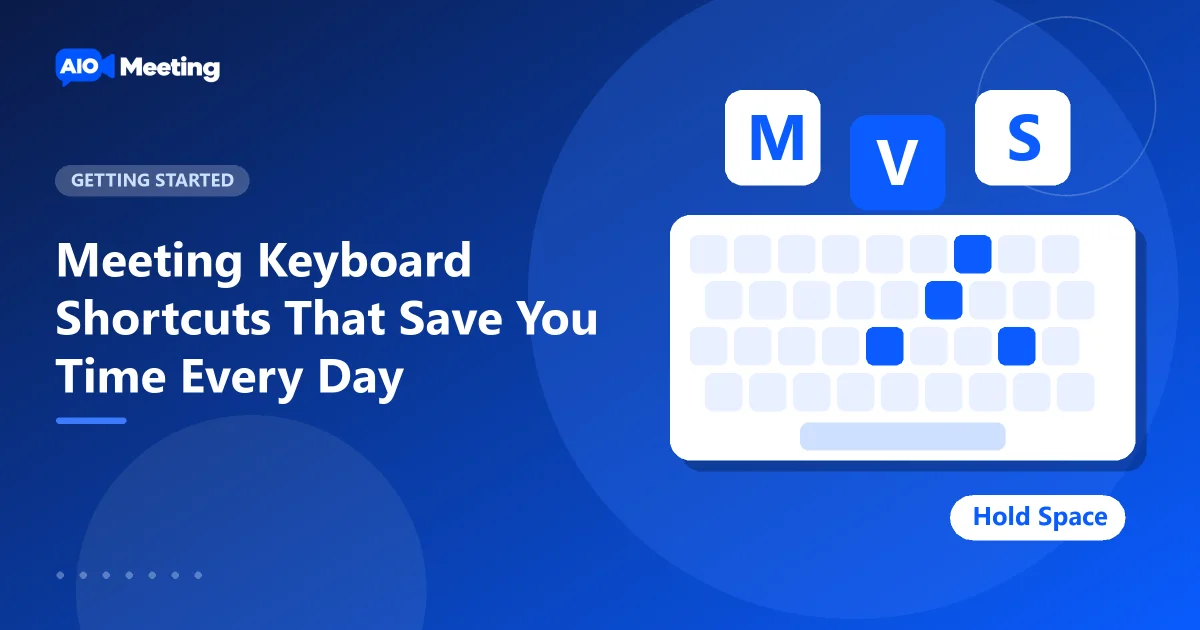
Reaching for the mouse to unmute takes a second. In a lively discussion, that second is the moment someone else starts talking. Meeting keyboard shortcuts fix that. One key mutes you, one starts your camera, one opens the chat. This page lists every shortcut in the meeting room and shows how to use them in a real call.
The complete list
| Key | What it does |
|---|---|
| M | Mute or unmute your microphone |
| V | Turn your camera on or off |
| S | Share your screen |
| C | Open or close the chat |
| P | Open or close the People panel |
| H | Raise or lower your hand |
| F | Full screen on or off |
| Hold Space | Talk while you are muted (push to talk) |
| Esc | Close a menu or a panel |
Shortcuts do not work while you type in a text field, such as the chat box. Click outside the field, or press Esc, and they work again.
Where to find them in the room
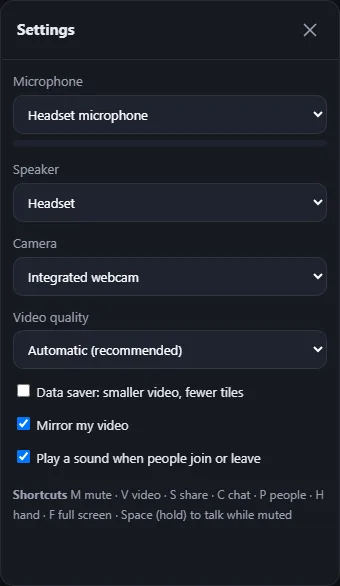
The toolbar shows the key next to the main buttons when you hover over them, for example "Mute (M)" and "Stop video (V)". The full list is also at the bottom of Settings in the room, under Shortcuts.
Push to talk: the most useful key
In a group call, stay muted and hold Space while you speak. Let go and you are muted again. Nobody hears your keyboard, the dog or the coffee machine, and you never forget to mute after speaking. It is the habit that makes the biggest difference in large meetings.
Tip: push to talk works best with headphones. Without them, the room's speaker can still be picked up while you hold the key.
Shortcuts for presenters
- Press S to start sharing and pick the window in the browser's dialog.
- Press V to turn your camera off while you share on a slow line.
- Press C now and then to glance at questions in the chat, then Esc to close it.
More presenting advice is in our screen sharing tips.
Shortcuts for hosts
Press P to open the People panel. From there you admit people from the waiting room, mute someone, lower raised hands and open each person's menu. People with a raised hand move up the list, so you see them first. Press P again to close the panel and give the stage more room.
Shortcuts for participants
- H raises your hand without interrupting. The host is told, and a hand shows on your tile. Press it again to lower it.
- F gives the meeting the whole screen, which helps when someone shares small text.
- M is faster than the button when the host asks you a question.
The toolbar at a glance
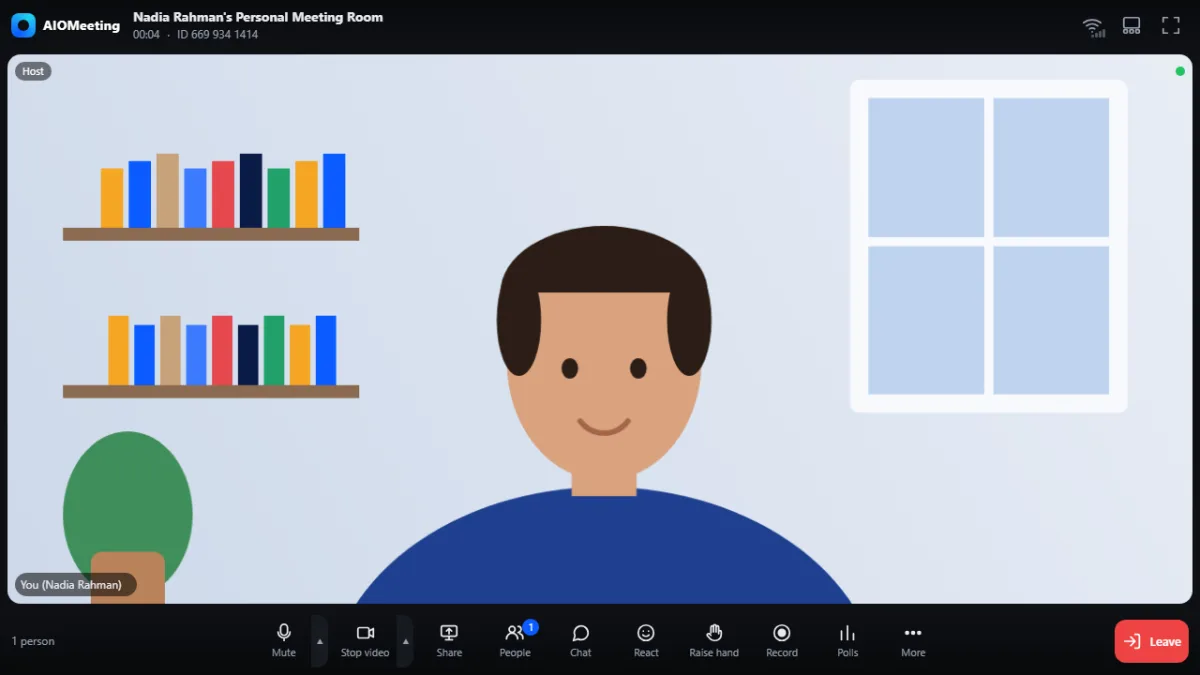
Shortcuts cover the common actions. The rest is in the toolbar: React for an emoji, Record when the host allows it, and More for settings, the layout, full screen and the extra tools the site has switched on, such as polls or a virtual background.
On a TV, the room switches to TV mode: you move between the buttons with the arrow keys of the remote and press OK. See joining from a phone, tablet or TV.
Practise in an empty meeting
Shortcuts stick when your fingers know them. Start a meeting on your own with New meeting and try each key for two minutes:
- Press M and watch the microphone button change. Press it again.
- Press V to stop and start your camera.
- Press C, type a test message, press Esc, then P.
- Press H to raise your hand and see it on your tile.
- Mute yourself and hold Space while you count to three.
After one practice round, most people use M and Space without thinking. Then leave the meeting; nobody else was there, so nothing is lost.
Frequently asked questions
Why do the shortcuts not work?
You are probably typing in a text field, such as the chat. Click outside it or press Esc. Shortcuts work again at once.
Is there a push to talk key?
Yes. Hold the space bar to talk while you are muted. Let go to mute again.
Can I change the keys?
The keys are fixed, so they are the same for everyone in the meeting. That makes it easy to tell people "press H to raise your hand".
Where is the full list in the room?
At the bottom of Settings in the room, under Shortcuts. The toolbar help article lists them too.