4 min read
A camera that shows nothing or a microphone that nobody hears is the most common meeting problem. It is almost never broken hardware. In most cases the browser has no permission, the wrong device is picked, or another app holds the camera. This guide helps you fix a camera not working in a video meeting, a microphone not working, echo, and sound you cannot hear, in that order.
Start with the preview
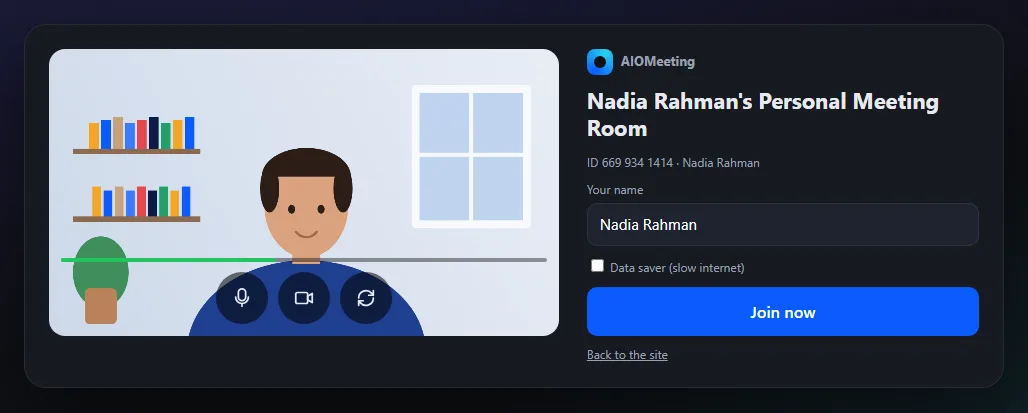
Before you enter a meeting you see a preview of your own video. It is the best place to test. If your picture shows and the microphone meter moves when you speak, you are ready. If not, fix it here, before anyone is waiting for you.
The camera does not work
1. Allow the camera in the browser
The browser asks the first time. If you pressed Block by mistake, press the lock or camera icon in the address bar, set the camera to Allow and reload the page. The room tells you "No camera or microphone: check the browser permission" when it cannot use them.
2. Pick the right camera
Laptops with a docking station, or with a virtual camera app, often list two or more cameras. Pick the one you want under Settings in the room. On a phone, the switch button in the preview flips between the front and back camera.
3. Close other apps that use the camera
On many computers only one app can use a camera at a time. Close other video apps and browser tabs that use the camera, then reload. If you see "That device could not be opened", this is usually the reason.
4. Check the system settings
- Windows: Settings, Privacy and security, Camera. Allow apps and your browser to use it.
- Mac: System Settings, Privacy and Security, Camera. Tick your browser.
5. Did the host stop your video?
A host can stop your video. You then see a note that the host stopped your video. Start it again yourself, or wait for the host to ask you.
Nobody can hear you
- Are you muted? The microphone button shows a line through it. Press it or M. Many hosts mute everyone on entry.
- Allow the microphone with the lock icon in the address bar, then reload.
- Pick the microphone you speak into under Settings. A headset is often listed apart from the built-in microphone. The level bar moves when the right one is chosen.
- Check the mute switch on your headset cable or on the headset itself.
Echo and noise
Echo almost always comes from a speaker that a microphone picks up again. The fixes are simple:
- Use headphones. This alone solves most echo.
- Two devices in one room cause echo and a loud squeal. Mute one of them and turn its speaker down.
- Mute yourself when you are not speaking. Hold Space to talk while muted.
You cannot hear the others
- Some browsers block sound until you click the page. If you see Click to hear the meeting, press it.
- Choose the speaker or headphones you use under Settings, in Speaker.
- Check your computer volume and that the system is not muted.
- Look at the other person's tile. A microphone with a line through it means they are muted.
- Bluetooth headphones sometimes switch to a call mode. Reconnect them if the sound stops.
Still stuck? Leave and rejoin the meeting. A fresh start of the browser tab clears most device problems. If the picture and sound freeze instead, it is the network: see video calls on slow internet.
Prevent it next time
- Join two minutes early and check the preview.
- Keep the same headset plugged in, so the browser remembers it.
- Use the latest Chrome, Edge, Firefox or Safari. The Download page lists what each browser supports.
For a good picture once the camera works, read how to look good on camera.
Frequently asked questions
Why does the browser not ask for the camera again?
It remembers a Block. Press the icon in the address bar, set the camera and microphone to Allow, and reload the page.
My camera works in other apps but not in the meeting. Why?
Another app may still hold it, or the browser has no permission in the system settings. Close the other app and check the privacy settings of Windows or macOS.
How do I stop echo quickly?
Put on headphones, or mute the second device in the same room. Echo comes from a speaker that a microphone picks up.
Where can I get more help?
The Help Center has an article for each case, and you can open a support ticket with the meeting ID and your browser.