4 min read
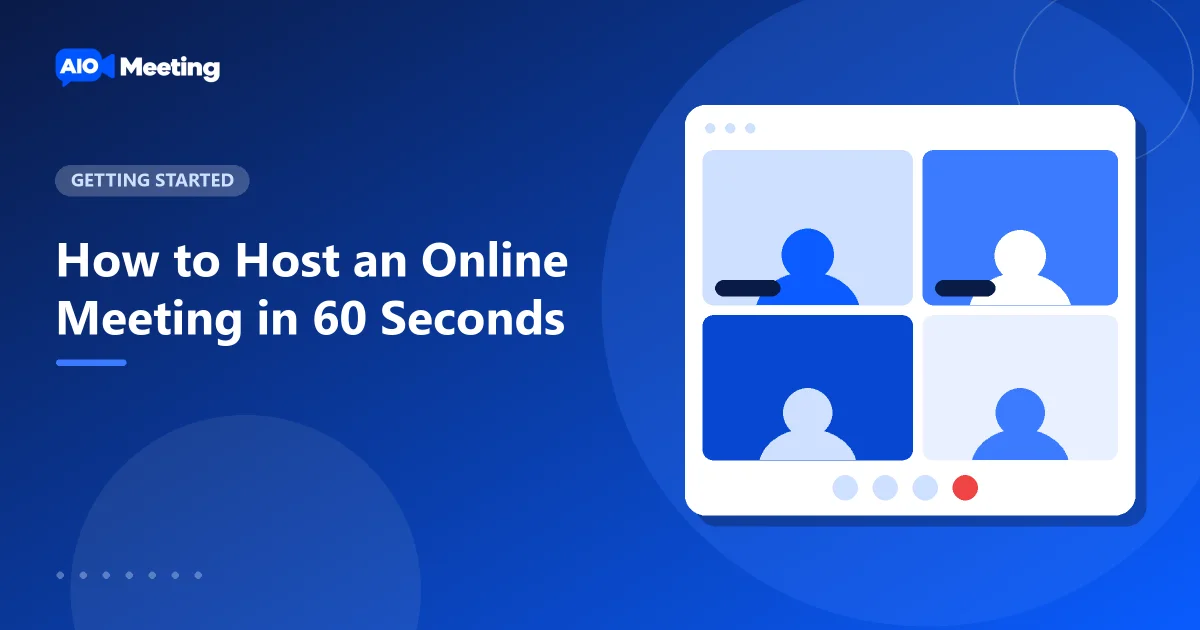
You can host an online meeting in about a minute. There is nothing to install, for you or for the people you invite. You open your dashboard, start a video meeting, check your camera and send the meeting link. This guide walks you through each step and adds a few habits that make the first call go well.
In short
- Only the host needs an account. Guests join for free with the link.
- Press New meeting, allow the camera and microphone, press Join now.
- Open Meeting info and invite and press Copy invitation.
Before you start: one account, no downloads
Meetings run in the web browser on computers, phones and tablets. Chrome, Edge, Firefox and Safari all work. You need an account to host. The people you invite do not.
If you do not have an account yet, create a free account and confirm your e-mail address. Until the address is confirmed you can look around, but you cannot host. The free package is enough for your first meeting. You can compare the limits of each package on the pricing page later.
Start a video meeting in three steps
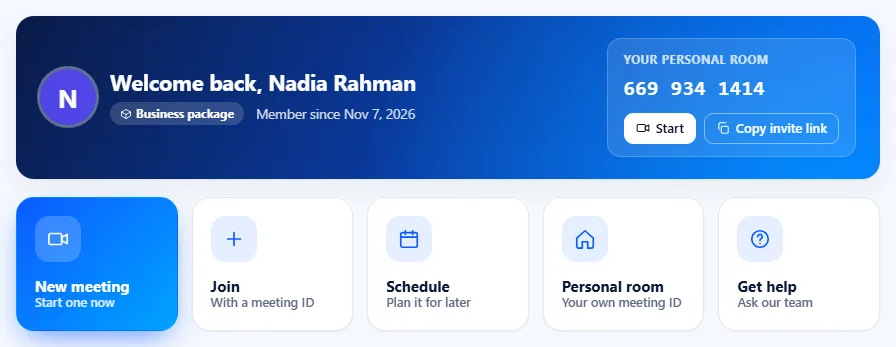
- Press New meeting. Sign in and press New meeting on your dashboard, or Start a meeting in the header. The meeting room opens at once and the meeting gets its own 11-digit meeting ID.
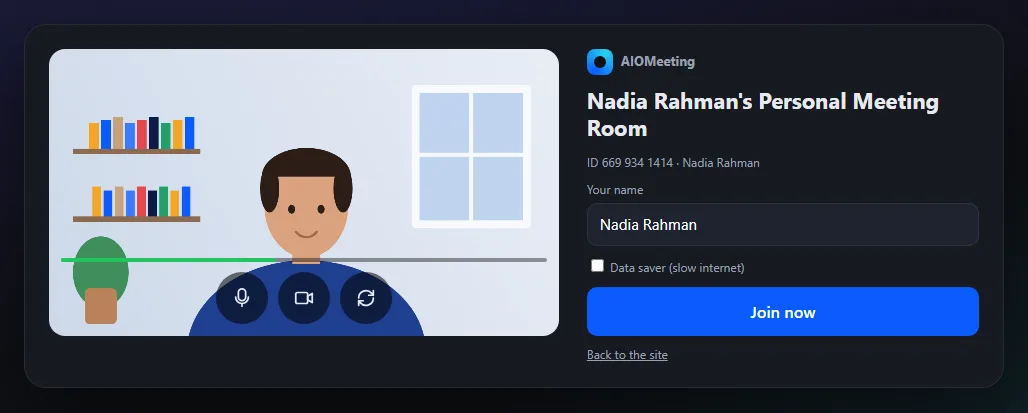
- Check your camera and microphone. The browser asks for permission the first time. Choose Allow. In the preview you see your own video and can switch the camera or the microphone off if you want to enter quietly. If the wrong camera shows, pick the right one under Settings once you are in the room.
- Press Join now. You are in the room as the host.
Invite people to the meeting
An empty room is not a meeting. In the room, open Meeting info and invite. You see the topic, the meeting ID, the passcode and the join link. Two buttons do the work:
- Copy link copies only the join link. It is the fastest way to bring someone in from a chat app.
- Copy invitation copies the full text: topic, time, link, meeting ID and passcode. Paste it into an e-mail or a message.
People who open the link join in their browser. When the link carries the passcode, they do not have to type it. Others can type the meeting ID on the Join a meeting page. For more ways to send invitations, read how to invite people to a video meeting.
Run the call: the toolbar you need today
The toolbar at the bottom of the room holds everything for a first meeting. You do not need to learn it all now. These buttons cover most calls:
- Mute and Stop video turn your microphone and camera off and on.
- Share shows your screen, one window or a browser tab.
- Chat and People open the side panels.
- Leave ends your part. As the host you can also end the meeting for everyone.
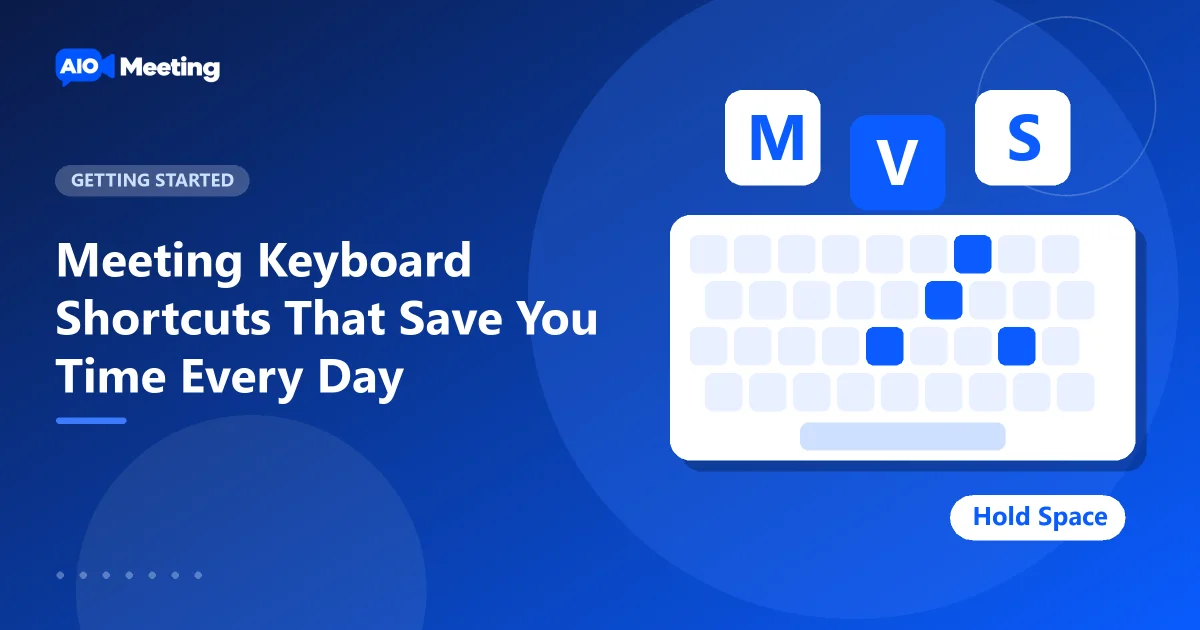
If you like the keyboard, press M to mute and V for the camera. The full list is in our post on meeting keyboard shortcuts.
Five habits that make a first meeting go well
- Use headphones. Echo almost always comes from a speaker that a microphone picks up again. Headphones stop it.
- Join two minutes early. You have time to fix a camera or a microphone before anyone arrives.
- Say who should talk. In a group, ask people to stay muted and raise a hand with Raise hand when they want to speak.
- Keep the passcode on. New meetings get a passcode by default. Leave it on unless you have a reason. Our meeting security guide explains why.
- End it properly. Press Leave and choose End meeting for everyone when you are done. If you only leave, the meeting keeps running for the others until everyone has gone.
After the meeting
Every meeting you host appears under Previous on your Meetings page, with a report of who joined and when. That is useful for classes and client calls. If you plan the next meeting ahead, use Schedule instead of New meeting, so people get the invitation and a reminder before the start. Our guide to scheduling recurring meetings shows how.
Frequently asked questions
Do the people I invite need an account?
No. Only the host needs an account. Guests open the link or type the meeting ID and join for free in their browser.
Do I have to install an app?
No. The meeting runs in the browser. On a phone you can add the site to the home screen for one-tap access, but that is optional. See the Download page.
How long can my meeting run?
Your package sets the meeting length and the number of participants. You see your limits under Meeting Settings, in the Your package box, and on the pricing page.
Can I host from my phone?
Yes. Sign in on the phone browser and press New meeting. Talking, video and chat work on a phone. Sharing your own screen needs a computer.