4 min read
You do not need a laptop to take part in a meeting. You can join a meeting from your phone in the browser, use a tablet for a better view, or put the meeting on a TV for the whole room. No app store, no download. This guide covers each device, with tips that keep the picture and sound clear.
Join from a phone
- Open the invitation link in Chrome, Safari, Edge or Firefox. Or open the Join a meeting page and type the meeting ID.
- Allow the camera and the microphone when the browser asks.
- Type your name and press Join now.
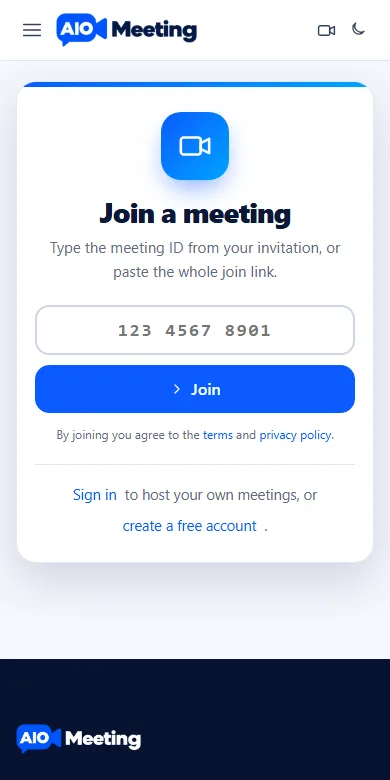
A meeting ID has 11 digits, a personal room 10. Spaces do not matter, and you can paste the whole link into the same box. If the meeting has a passcode and you typed the ID by hand, the preview asks for it.
What works on a phone
- Talking, video, chat, reactions and raising your hand.
- Watching what others share.
- Switching between the front and back camera with Switch camera.
Sharing your own screen needs a computer, because mobile browsers do not offer it.
Join from a tablet
A tablet joins the same way as a phone, in the browser. The bigger screen makes shared slides easier to read, and a tablet on a stand gives you a steady camera. Turn the tablet sideways for gallery view, and use speaker view if the tiles get small.
Keep it one tap away
Add the site to your home screen and it opens like an app:
- Android (Chrome): open the browser menu and choose Add to Home screen or Install app.
- iPhone and iPad (Safari): press the Share button and choose Add to Home Screen.
The Download page shows the steps for each device and the browsers that are supported.
Meet on a TV
A TV turns a meeting room or a living room into a meeting space. Open the TV screen at https://aiomeeting.com/tv in the browser of an Android TV, a Samsung or an LG TV. The page is made for a remote control: big tiles, arrow keys to move, OK to press and Back to go back.
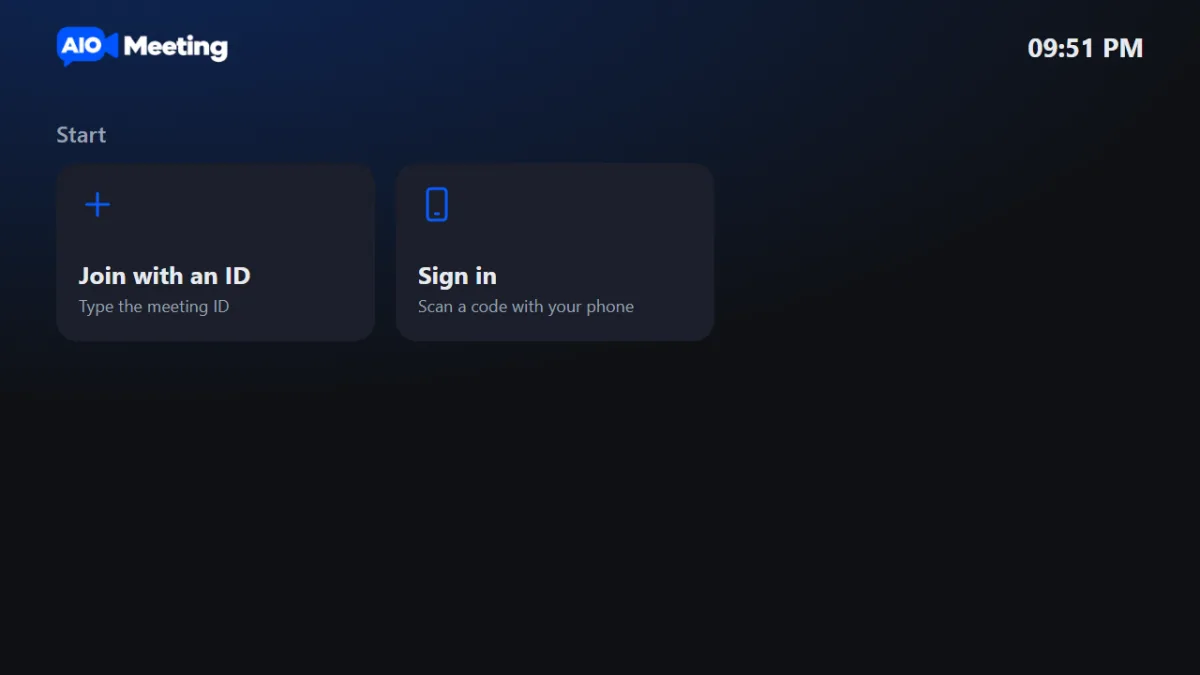
- Join: choose Meeting ID and type it with the number pad on the screen.
- Your own meetings: when the TV is signed in, you also see Live now, your Upcoming meetings and your personal room.
Sign the TV in with your phone
Typing a password with a remote is slow. Choose to sign in with your phone on the TV. A 6-letter code and a QR code appear. On your phone, where you are already signed in, scan the code or open the device page and type it, then press Yes, sign it in. The TV signs in a moment later. A code works for 10 minutes. You can sign the TV out later from your Security page.
Tip: most TVs have no camera. Use the TV for the picture and a phone or a laptop in the same room for the camera, with the TV muted. Two open microphones in one room cause echo.
Tips for a good mobile call
- Use Wi-Fi when you can, and keep the screen on.
- On a weak connection, switch on Data saver in the room settings. Our guide to video calls on slow internet has more.
- Prop the phone up at eye level. Holding it makes the picture shake.
- Use earphones. They stop echo and make your voice clearer.
- Silence other apps, so a phone call does not take over the microphone.
New to meetings? Start with how to host your first online meeting.
Frequently asked questions
Do I need an app to join from my phone?
No. The meeting runs in the phone's browser. Adding the site to your home screen is optional and only gives you one-tap access.
Can I share my screen from a phone?
No. Mobile browsers do not offer screen sharing. You can watch what others share.
Which TVs work?
TVs with a modern browser, such as Android TV, Samsung and LG. Open the TV page in the TV browser and use the remote.
How do I join with only a meeting ID?
Open the Join a meeting page, type the ID and press Join. Type the passcode from the invitation if the preview asks for it.