
4 min read
A daily stand-up should take 15 minutes. In many remote teams it takes 40. The cause is rarely the people. It is the format: no fixed link, no order, and one long discussion that keeps everyone waiting. This guide shows how to run remote team meetings and stand-ups that stay short, with tools you already have in the meeting room.
Set it up once: one recurring link
Schedule the stand-up as a recurring meeting. Choose weekly, tick the working days, Mon to Fri, and set the duration to 15 minutes. Everyone gets one link that never changes. Ask the team to add the calendar file once.
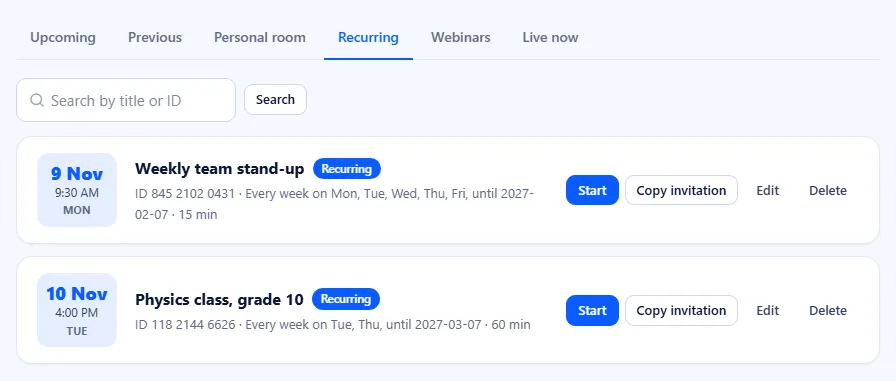
For a team that also calls each other during the day, your personal meeting room is a good second link for quick calls.
Settings that help a stand-up
- Allow people to join before you arrive. The meeting can start when the host is late. For an internal team call with a passcode, this is fine.
- Waiting room off for a known team, so nobody waits to be admitted every morning.
- Passcode on, because the link never changes.
The 15-minute format
- Same order every day. Use the order of the People panel or an alphabetical list in the agenda. Nobody wonders who is next.
- Three short answers each. What I did, what I will do, what blocks me. One minute per person.
- Blockers go to the parking lot. Write them in the chat. Solve them after the stand-up with only the people who are needed.
- End on time. The host ends the meeting for everyone at 15 minutes.
Tip: put the order and the three questions in the meeting Agenda when you schedule it. New team members see the format in the invitation.
Use the room tools, not interruptions
- Raise hand (H) when you want to add something. The host sees it and gives you the word at the end.
- Reactions say "agreed" or "great" without a word.
- Chat keeps links, ticket numbers and names. The host can find it later in the meeting report.
- Push to talk: stay muted and hold Space while you speak. See meeting keyboard shortcuts.
Follow-ups in small rooms
When three people need to solve a blocker, the other seven should not wait. Start a short follow-up in a personal room, or, on a package with breakout rooms, open rooms for each topic for ten minutes. The breakout rooms guide explains how.
Cameras on or off?
Cameras help people read each other, especially in a new team. But they are not free: on a weak connection, video costs bandwidth and makes the sound worse. A good rule is "camera on while you speak". People on mobile data can use data saver or audio only. See video calls on slow internet.
Other remote team meetings
The weekly planning meeting
Schedule it as a separate recurring meeting with a longer slot and a real agenda. Share the board or the document with Share, a single tab is best. Record it with the cloud recording for people in other time zones.
The team retro
Use the chat for silent writing: everyone types what went well, at the same time, for three minutes. Then discuss. Breakout rooms work well for small groups with one question each.
One-to-ones
Use your personal room. The link never changes, and the waiting room keeps the next person out until you are ready.
Hybrid teams
When some people sit in an office and others at home, give the office group a TV with the TV screen and one laptop with the camera. Everyone at home then sees the room, and the room sees everyone. Our post on joining from a phone, tablet or TV shows the setup.
Frequently asked questions
How long should a daily stand-up be?
About 15 minutes for a team of up to ten. Keep longer discussions for a follow-up with only the people needed.
Should the stand-up use the same link every day?
Yes. A recurring meeting keeps the same link and meeting ID for every session, so nobody looks for a new invitation.
Can the team start without the host?
Yes, if you tick Allow people to join before you arrive when you schedule the meeting.
Where do I find what was said in the chat?
In the report of that session, under Previous on the Meetings page. More in the meeting reports help article.