4 min read
A scheduled meeting gives people time to plan. A recurring meeting goes one step further: you set it up once and the same link works for every session. This guide shows how to schedule a meeting, how to schedule a recurring meeting for a weekly team call or a class, and how to change the series later without sending a new link.
When to schedule instead of starting now
New meeting is perfect for a quick call. Schedule a meeting when people need to plan their day around it. A scheduled meeting has a date, a time zone and a duration. It also sends reminders. Shortly before the start, you get a reminder by e-mail and in your notifications. People who registered get an e-mail reminder too.
Schedule a meeting step by step
- Open Schedule a Meeting from your member menu or the Schedule tile on your dashboard.
- Give it a clear Topic, for example "Design review, sprint 14". Add an Agenda if people should prepare.
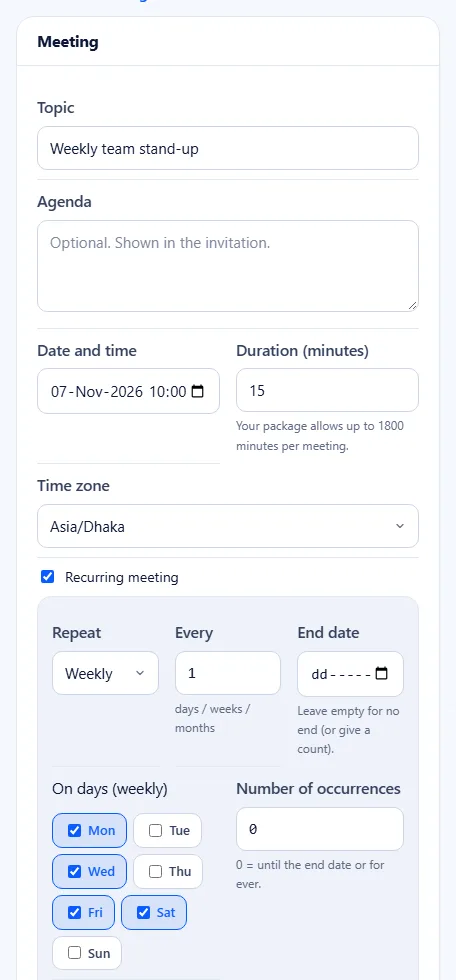
- Pick the Date and time, the Time zone and the Duration (minutes). The form shows how many minutes your package allows.
- Choose the security options: a Passcode, the Waiting room and whether people may join before you arrive.
- Choose the audio and video options, such as Mute participants on entry.
- Press Schedule.
Get the time zone right
The time zone is the most common cause of a missed meeting. Set your own zone once under Meeting Settings, so every new meeting starts with it. When you invite people in other countries, the calendar file you send carries the zone, and their calendar shows the meeting at their local hour. The Schedule a meeting help article lists every field of the form.
Schedule a recurring meeting
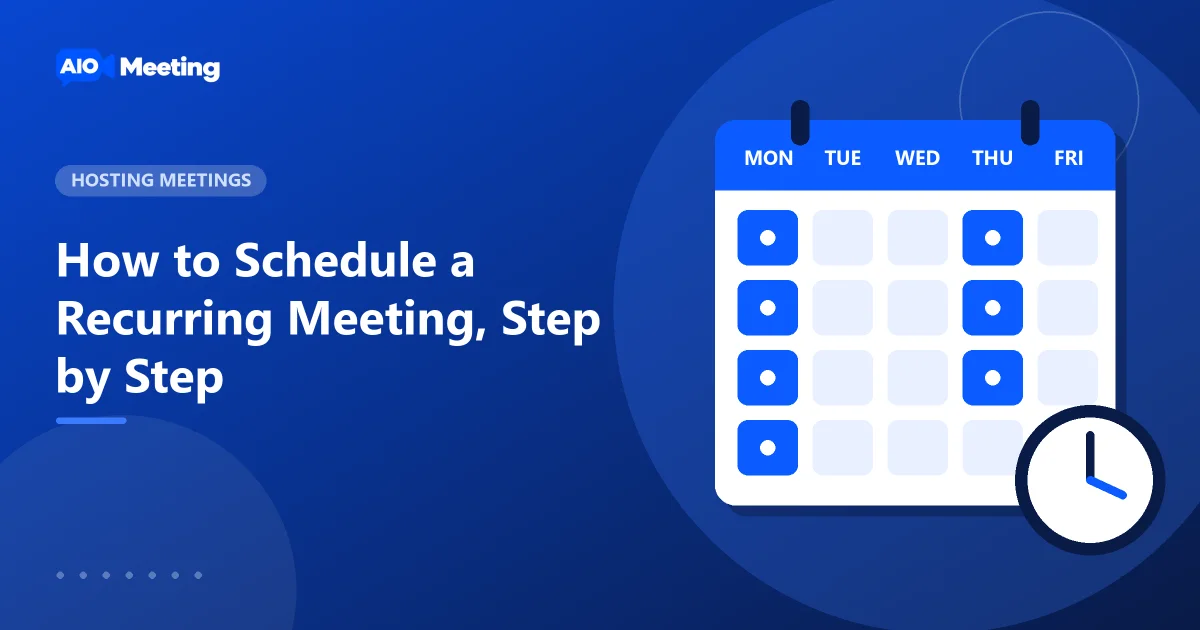
A recurring meeting keeps the same link and meeting ID for every occurrence. People save it once and use it every week.
- On the Schedule a Meeting form, tick Recurring meeting.
- Choose Repeat: daily, weekly or monthly.
- Set Every: every 1 week, every 2 weeks, and so on.
- For a weekly meeting, pick the days under On days (weekly), for example Mon and Thu.
- End the series on an End date, or after a Number of occurrences. Leave both empty for a series without an end.
- Press Schedule.
Tip: for a class that runs a whole term, set the end date to the last day of term. The series stops by itself and nobody joins an empty room in the holidays.
Find, start and change your series
Recurring meetings have their own Recurring tab on the Meetings page. Each one shows when it runs next. When it is time, press Start. People can open the meeting a little before the start time.
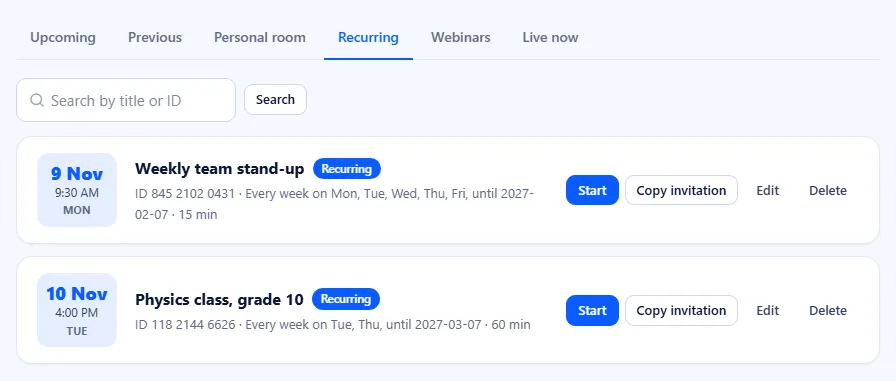
To change the series, open the meeting and edit it. Changes apply to the coming occurrences, and the link stays the same. Deleting the meeting removes the whole series, but the reports of past sessions stay. Every session has its own report, so you can still see who came to each one. Read more in our post on meeting attendance reports.
Send the invitation
After saving, the meeting page shows the join link, the meeting ID and the invitation text. Use Copy invitation, send it by e-mail from the page, or download the calendar file. For a recurring meeting, the calendar file holds the whole series, so one click adds every session. Our guide on inviting people by link, ID, e-mail and calendar covers each option.
Recurring meeting or personal room?
Both give you a link that does not change. A recurring meeting has a schedule, reminders and a fixed topic. Your personal room has no schedule at all; it is always there for quick calls. Use a recurring meeting for a team call or a class, and the personal meeting room for ad hoc calls with people you meet often.
Frequently asked questions
Does a recurring meeting use the same link every time?
Yes. Every occurrence uses the same join link and meeting ID. Edits apply to the coming sessions without a new link.
Can I repeat a meeting every two weeks?
Yes. Choose weekly under Repeat and set Every to 2. Pick the days of the week the meeting runs.
What happens to past reports if I delete the series?
The meeting and its future sessions are removed. The reports of the sessions that already ran stay.
Will people get a reminder?
You get a reminder by e-mail and in your notifications shortly before the start. People who registered for the meeting get an e-mail reminder too.