4 min read
Most failed meetings fail before they start: a guest has the wrong meeting link, the wrong time or no passcode. When you invite people to a video meeting, a good invitation fixes all three. Every meeting here has a join link, a meeting ID and a ready-made invitation text. This guide shows five ways to send them and when to use each one.
What is in a meeting invitation
The invitation text holds everything a guest needs:
- The topic and the time, with the time zone.
- For a recurring meeting, how often it repeats.
- The join link. It usually carries the passcode in a coded form.
- The meeting ID and the passcode, for people who type them by hand.
Guests do not need an account. They open the link and join in their browser.
1. Copy the invitation
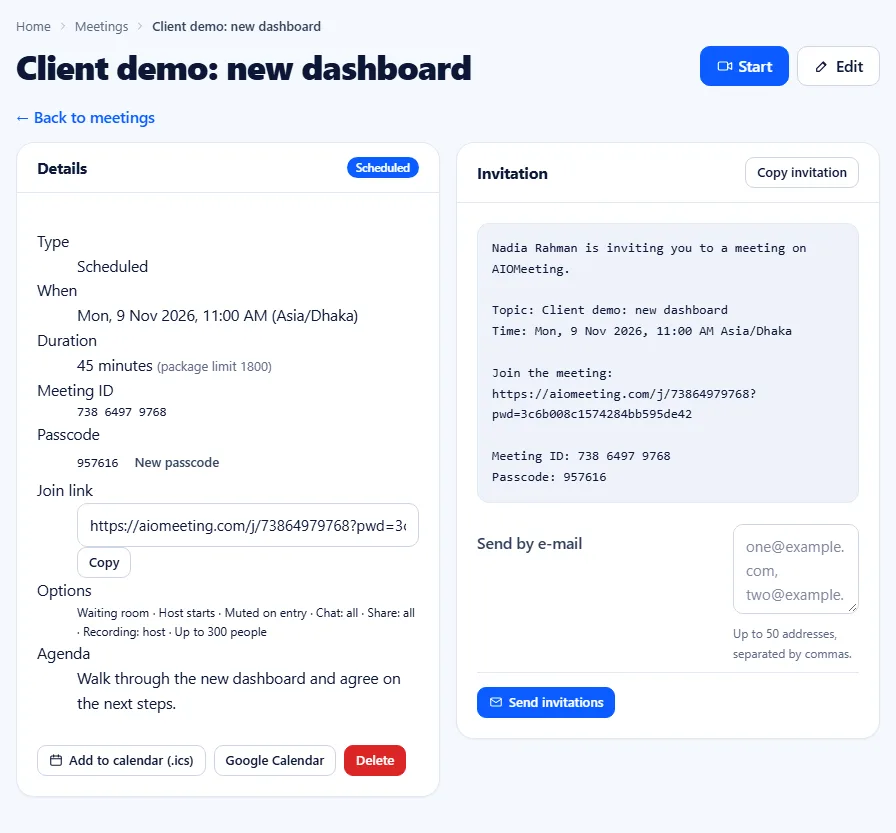
On the meeting page, or next to the meeting on your Meetings list, press Copy invitation. Paste the text into any e-mail, chat or message. This is the most complete option, because the guest sees the time and the passcode as well as the link.
2. Send it by e-mail from the meeting page
Under Send by e-mail, type up to 50 addresses, separated by commas, and press Send invitations. We send the invitation for you, so it arrives with the right link and time. This is handy for people outside your usual chat tools, such as clients or parents.
3. Add it to a calendar
The meeting page offers Add to calendar (.ics), a calendar file, and a Google Calendar button. The .ics file opens in Outlook, Apple Calendar and most other calendar apps. Send the file with your e-mail, and the guest gets the meeting in their own calendar at their local time. For a recurring meeting the file carries the whole series.
Tip: people who keep a calendar rarely miss a meeting. When a meeting matters, send the calendar file, not only the link.
4. Share the link or the meeting ID
For a quick call, the link alone is enough. In the meeting room, open Meeting info and invite and press Copy link. A guest can also join with the meeting ID:
- Open the Join a meeting page, or the join box on the home page.
- Type the meeting ID. A meeting ID has 11 digits, a personal room 10. Spaces do not matter.
- Press Join, then type the passcode if asked.
The ID is useful when you read it out on the phone or show it on a slide.
5. Invite your saved contacts
Under Contacts, keep the people you meet often. They do not need an account. Tick one or more contacts, pick a meeting or your personal room in Invite the ticked contacts to, and press Send invitations. Each contact gets the invitation by e-mail. A contact who has an account here is marked member.
For big or public events: registration
When you share a meeting widely, switch on Registration when you schedule it. People sign up with their name and e-mail and get a personal join link. You can approve each person or let everyone in automatically. For an audience that only watches, a webinar fits better. See how to host a webinar.
Common invitation mistakes
- Sending only the meeting ID of a meeting with a passcode. The guest gets stuck at the passcode. Send the full invitation instead.
- Forgetting the time zone. The invitation and the calendar file carry it. A screenshot of your own calendar does not.
- Posting a private link in public. Anyone with the link can try to join. Keep the waiting room on for such meetings. Our meeting security guide explains more.
- Changing the passcode after sending. Old links stop working. Send the new invitation to everyone.
Frequently asked questions
Do guests need to type the passcode?
Usually not. The join link carries the passcode in a coded form. Guests who type the meeting ID by hand need the passcode from the invitation.
What is an .ics file?
It is a standard calendar file. Opening it adds the meeting to Outlook, Apple Calendar or another calendar app, with the right time zone.
Can people join before I send a reminder?
A scheduled meeting opens a little before its start time. Reminders go out by e-mail shortly before the start, to you and to registered guests.
Where do people type a meeting ID?
On the Join a meeting page or in the join box on the home page. They can paste the whole link there too.