4 min read
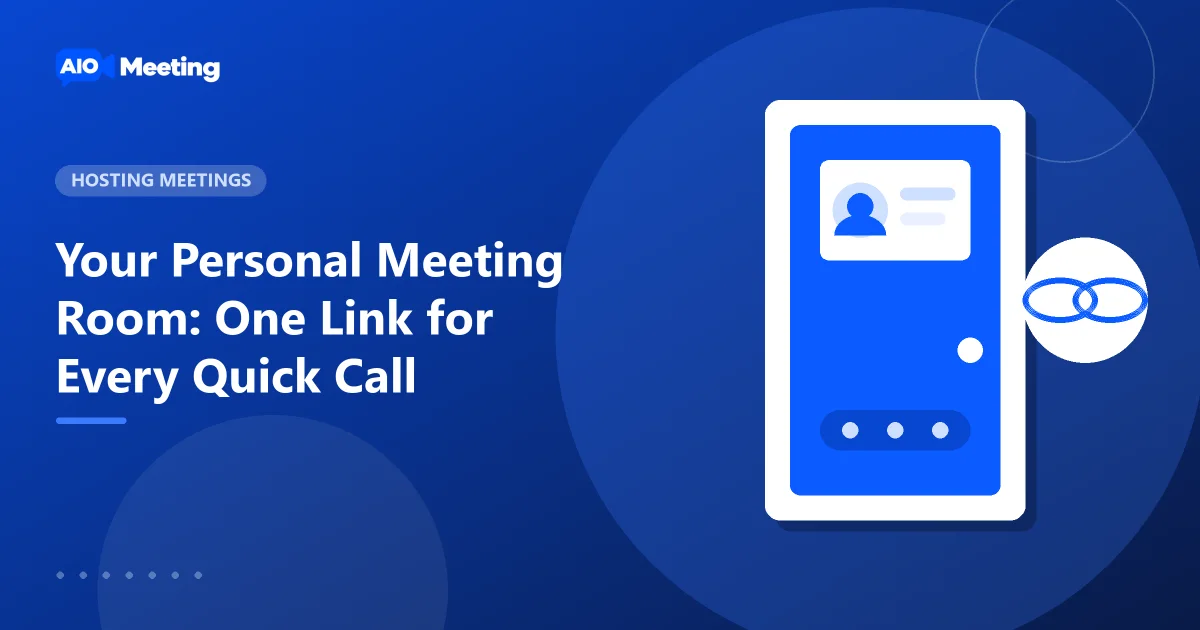
A personal meeting room is your own meeting space with an ID that never changes. You share the link once, and it works every time. It is the online version of an office door with your name on it. This post explains when a personal meeting room is the right choice, how to start it, and how to keep it private when the link travels far.
What makes the personal room different
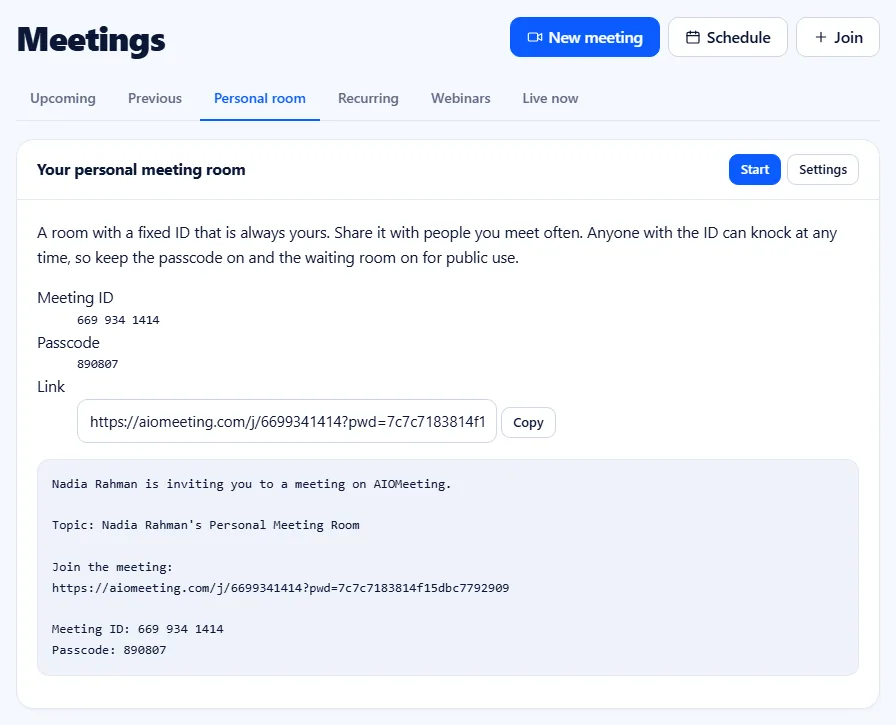
A normal meeting gets a new 11-digit meeting ID when you create it. Your personal room has a 10-digit ID, so it is easy to tell apart. It is made the first time you open it, and from then on it is always there. There is no date and no topic to fill in. You press Start and you are in.
- Good for: quick calls with colleagues, office hours, regular clients, family.
- Less good for: large or public events. Use a scheduled meeting or a webinar there, so each event has its own link.
Find and start your personal room
- Open your dashboard. The Your personal room card shows the ID with Start and Copy invite link.
- Or open the Meetings page and the Personal room tab.
- Press Start. Check your camera in the preview and press Join now.
Share the permanent meeting link
Press Copy invite link on the dashboard, or copy the invitation from the Personal room tab. Put the link where people will find it again:
- In your e-mail signature, as "Talk to me".
- In a pinned message of your team chat.
- On a booking page or in the welcome e-mail for a new client.
Because the link does not change, people do not need a new invitation for every call. That is the whole point. For other ways to share, read how to invite people to a video meeting.
Keep your personal room private
A link that never changes can end up in places you did not plan. These settings keep your room yours:
- Keep the passcode on. The invitation link carries it in a coded form, so invited people do not type it, but a guessed meeting ID alone is not enough.
- Use the waiting room. People wait in a lobby until you press Admit. You see the name before anyone sees you.
- Turn off joining before the host. Then nobody meets in your room while you are away.
- Change the passcode when needed. If the link went too far, change the passcode in the room's settings page. Old invitations stop working; send the new one to the people who should have it.
The full checklist is in our guide to secure online meetings.
Apply your defaults to the personal room
Under Meeting Settings you set how new meetings start: passcode, waiting room, mute on entry, who may share and who may record. When you save, tick Apply these defaults to my personal room too. Your room then follows the same rules as your other meetings. The link All personal room settings opens every option of the room itself.
Reports for every session
Your personal room keeps one report per session, like a recurring meeting. Open the room's page to see the Previous sessions list. Each report shows who joined, when they left and the chat sent to everyone. See meeting attendance reports for what you can do with them.
Five good uses for a personal room
- Office hours. Teachers and managers share one link and keep the waiting room on. Visitors wait their turn.
- Client calls. Put the link in your welcome e-mail. Clients always know where to find you.
- Quick team questions. "Got five minutes?" becomes one click instead of a new invitation.
- Family calls. Parents and grandparents save one link on the home screen of their phone.
- Interviews. Admit one candidate at a time from the waiting room, and lock the meeting once the interview starts.
Frequently asked questions
How is a personal meeting ID different from a meeting ID?
A personal meeting ID has 10 digits and never changes. A normal meeting ID has 11 digits and belongs to one meeting or one recurring series.
Can two people use my personal room at the same time without me?
Only if you allow people to join before the host. Leave that option off and use the waiting room if the room should only run while you are there.
Can I change my personal room passcode?
Yes. Open the personal room settings page and change the passcode. Links with the old passcode stop working.
Does the personal room count against my package?
It follows the same limits as your other meetings: participants, meeting length and meetings at the same time. See the pricing page.